

You can make text larger through your phone’s settings. On an iPhone, start with Settings, then Display & Brightness and Text Size; on Android, open Settings and search for Font size.[1][2] Try a small change first, then return to something you actually want to read.
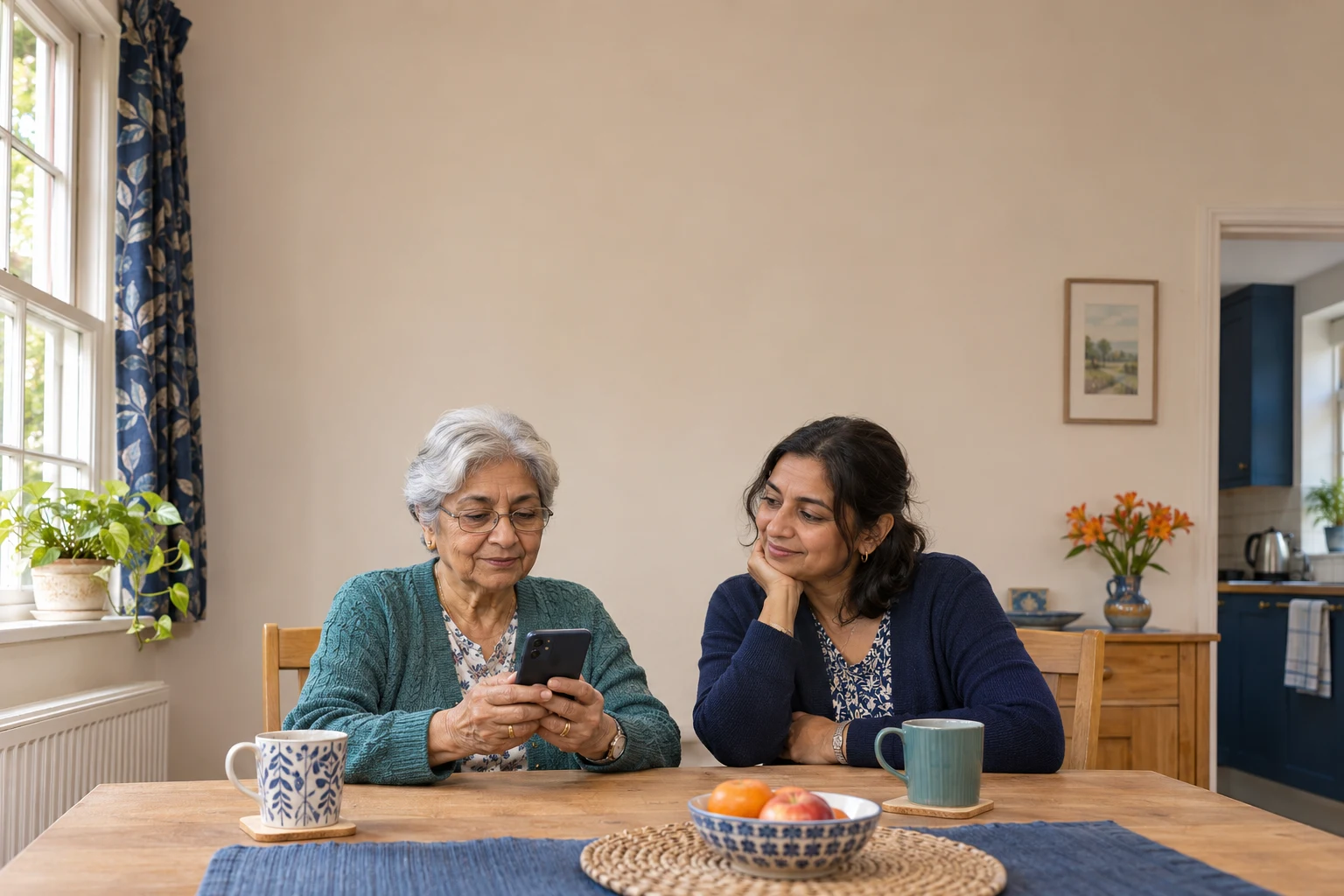
This guide is for older adults who want a more comfortable everyday screen, and anyone helping alongside them. You do not need to turn the afternoon into a lesson in everything the phone can do. Choose one ordinary task, such as reading a family message, and start there.
Begin with your own screen
Before changing anything, open a message or note that contains no private information. Look at what you find awkward. Is the writing too small, or would you prefer the buttons and other items to be larger too? Keep that example ready so you can compare it afterwards.
If someone is helping, ask them to sit beside you and explain the change before making it. You might say, “Please show me where that setting is, then let me try it.” Keep the phone in your hands if that works for you. The aim is to find a setting you like, rather than match somebody else’s preference.
Write down the starting position of a slider, or ask your helper to note it, before moving it. Change one thing at a time and check the result. You can leave other settings for another day; there is no need to work through the whole Accessibility menu.
On an iPhone, try the text size slider
Apple’s instructions are to open Settings, choose Display & Brightness, then Text Size, and move the slider to the size you want.[1] Start with a modest increase. Return to your example message and decide whether you prefer it before going further.
For additional sizes, Apple gives a separate route: Settings, Accessibility, Display & Text Size, then Larger Text.[1] If the first slider does not offer what you need, use that route with the official guide beside you, or ask someone to find it with you.
Apple says these changes apply to apps that support Dynamic Type, including Mail, Contacts, Calendar, Phone and Notes.[1] That is not a promise that every screen will change. Check the particular app you use rather than judging the result only from the settings page.
On Android, separate font size from display size
Google’s guidance says to search Settings for Font size and move its slider. It gives a separate Display size setting for changing how large items appear on screen.[2] Try font size first if your main concern is the writing, then review whether you want to explore display size as well.
Google notes that some instructions require Android 13 or later and that font size changes do not apply to every app.[2] If your screen does not match the guide, ask for help finding the equivalent on your particular phone instead of tapping through unfamiliar menus.
The guide also describes Bold text under Accessibility, then Display size and text, although some apps will not use it.[2] Treat that as a separate trial, not another change to make automatically. Your preference after reading a few lines matters more than someone else’s idea of the ideal setup.
Test a whole everyday task
Go back to the task you chose. Read the message, find the reply box and check that you can still reach the buttons you need. Apple warns that very large text can make buttons or other functions harder to tap, so adjust the size again if that happens.[1]
Ask your helper to watch while you repeat the task, rather than doing the last few taps for you. Explain the point where you would like another demonstration. If a screen remains awkward, note the app’s name and what you were trying to do, ready for a more specific support question.
Keep private conversations out of any practice notes or photographs of the screen. A note such as “Text Size is under Display & Brightness” is enough to remind you where to look without copying personal messages.
Leave yourself a setting you chose
Finish by checking that you can find the setting again. Write a few short instructions using the labels on your own phone, then follow them once before your helper leaves. Note which change you kept and which you decided against.
For today, a useful outcome is one message you can read more comfortably and a route back to the setting. For more practical reading about everyday life in later years, visit the Seasoned Hub.
Sources
[1] Changing font size on iPhone: Apple Support
[2] Change text and display settings: Android Accessibility Help